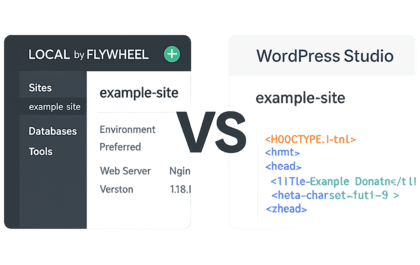

Local by Flywheel vs WordPress Studio: My Honest Experience
 Iftekhar Alam
Internet and Technology
Comments Off on Local by Flywheel vs WordPress Studio: My Honest Experience
578 Views
Iftekhar Alam
Internet and Technology
Comments Off on Local by Flywheel vs WordPress Studio: My Honest Experience
578 Views
If you’re a WordPress developer, choosing the right local development tool can save you hours of time and frustration. Recently, I used Local by Flywheel and WordPress Studio – two popular tools for WordPress local development. Although both are built for the same purpose, I noticed several key differences in user experience, features, and ease of use. In this article, I’ll compare Local by Flywheel vs WordPress Studio by sharing my real-life experience and thoughts to help you decide which one suits you best.
Features of Local by Flywheel:
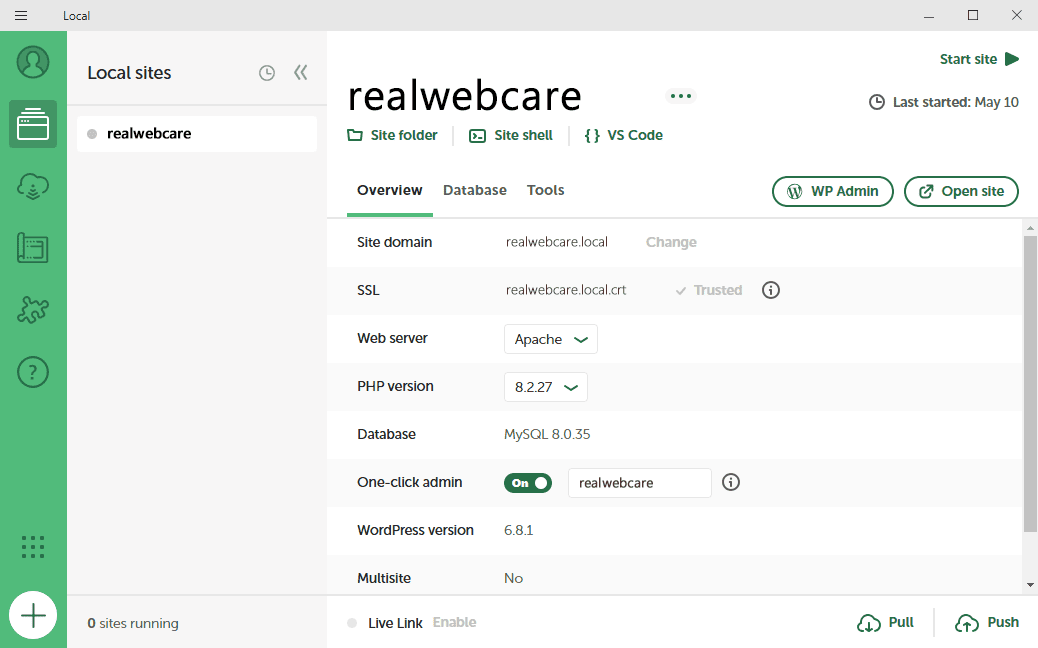
- All-in-one bundled environment (PHP, MySQL, Web Server)
- Built-in AdminerNeo for easy database management
- Integrated Mailpit for testing emails locally
- One-click WordPress installation
- Fast and smooth user experience
- Excellent for beginners and hassle-free setup
Features of WordPress Studio:
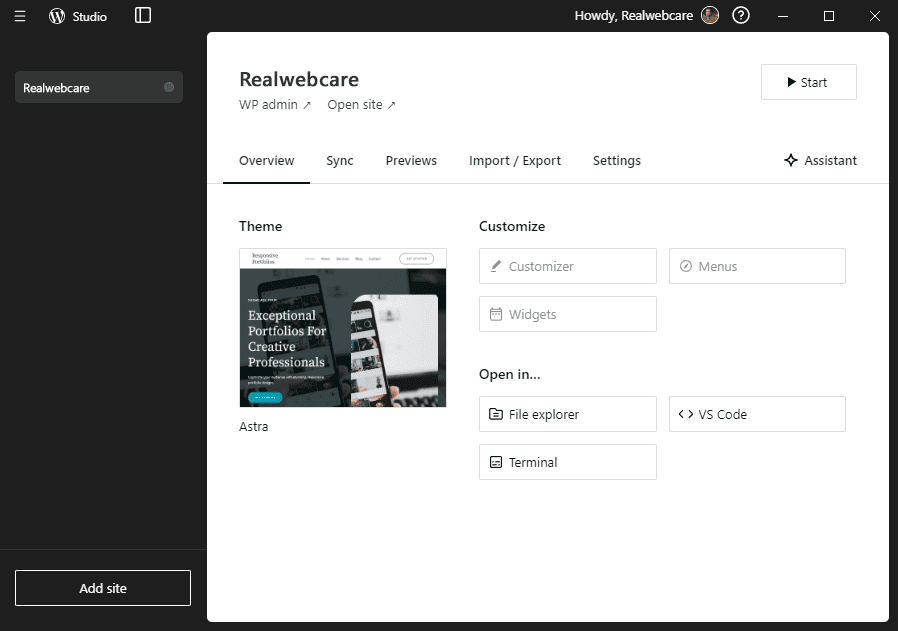
- Lightweight and fast local development tool
- Designed specifically for WordPress projects
- Requires external PHP installation
- Needs third-party tools for database access (e.g., Beekeeper Studio)
- Minimal system resource usage
- Clean and modern interface
Local by Flywheel vs WordPress Studio (My Personal Experience)
After working extensively with both Local by Flywheel and WordPress Studio, I’ve found myself leaning more towards Local for my regular development tasks. While both tools are capable and serve their purpose well, Local feels more polished, beginner-friendly, and efficient in real-world workflows. Its all-in-one setup saves me time and effort, especially when juggling multiple projects. For someone like me who prefers a smoother, hassle-free environment, Local simply fits better into my development routine.
✅ Why I Prefer Local by Flywheel
1. All-in-One Setup
One of the biggest advantages of Local by Flywheel is that it’s a complete package. It comes bundled with PHP, MySQL/MariaDB, and a web server – you don’t need to install anything separately. This means no additional setup for PHP or a database server. Everything is ready to use out of the box.
2. Built-in AdminerNeo
Local includes AdminerNeo, a database browser similar to phpMyAdmin. You don’t need to install any third-party tool to access and manage your WordPress database.
In contrast, with WordPress Studio, I had to install Beekeeper Studio separately, which required additional configuration and setup time.
3. Mailpit Integration
Another excellent feature is Mailpit, a built-in tool that lets you test email functionalities in your local environment. Whether it’s password resets or registration confirmation emails, you can inspect all emails easily without sending them to a real inbox.
4. Smooth Performance (Personal Experience)
In my case, Local by Flywheel felt slightly faster and smoother than WordPress Studio. Starting servers, loading sites, and switching between projects seemed more seamless.
Although Local is heavier in terms of system resources, I found it more stable and efficient overall. That said, your mileage may vary depending on your system configuration.
🆚 Features of WordPress Studio
- It’s significantly lighter than Local, making it a good choice for developers who prefer a low-resource setup.
- However, unlike Local, it does not include PHP. You must install PHP separately on your system to run it.
- One notable difference is that WordPress Studio uses SQLite as its default database, instead of the traditional MySQL. While this simplifies setup by removing the need for a separate database server, it may not reflect production environments for many WordPress sites.
- Similarly, for database access, you need to rely on third-party tools like Beekeeper Studio or TablePlus.
- While this offers flexibility for advanced users, beginners may find it a bit complicated and time-consuming.
💻 What About Non-WordPress Projects?
Both Local and WordPress Studio are designed specifically for WordPress development. If you’re working on other PHP frameworks like Laravel, Symfony, or CodeIgniter, these tools might not be ideal.
Instead, I recommend the following alternatives for non-WordPress PHP projects:
- Laragon: Perfect for Windows users. It’s lightweight, super fast, and Laravel-ready.
- Laravel Herd: Optimized for Mac users, officially recommended by Laravel.
- DDEV: A cross-platform, Docker-based solution that offers great flexibility.
- Docker Compose: Ideal for advanced users who want full control over their environment.
These tools provide better flexibility, performance, and customizability for complex PHP applications.
🟡 Quick Summary
| Tool | Best For | Pros | Cons |
|---|---|---|---|
| Local by Flywheel | WordPress beginners to pros | All-in-one, easy setup, email testing | Slightly heavy on system resources |
| WordPress Studio | Developers who want a lightweight tool | Modern stack, low footprint | Requires separate PHP & DB tool setup |
| Others (Laragon, DDEV, etc.) | Laravel or custom PHP projects | Highly customizable, flexible | Not suitable for WordPress-first workflows |
📌 Final Thoughts – Local by Flywheel vs WordPress Studio
Neither Local by Flywheel nor WordPress Studio is bad – they’re just designed for different types of users.
If you want a hassle-free, all-in-one solution for WordPress, Local by Flywheel is the clear winner. On the other hand, if you prefer a minimal, customizable setup and don’t mind installing dependencies manually, then WordPress Studio is a great modern alternative.
In my experience, Local saved me time, gave me better control, and made my workflow smoother. For anyone working seriously with WordPress, both tools are worth exploring but if I had to pick one, Local gets my vote.