Documentation
Responsive Portfolio Image Gallery Pro
Thank you so much for your interest in our plugin from WordPress.
- Version: 1.2
- Author: Realwebcare
- Created at: 3 September, 2016
- Last Update: 8 June, 2026
If you have any questions that are beyond the scope of this help file, Please feel free to contact us via Plugin Support Page.
Installation
Installing Responsive Portfolio Image Gallery Pro plugin is as simple as installing any other WordPress Plugin. The plugin can be installed in two convenient ways:
- Install by ZIP file or
- Install by FTP
Install by ZIP file:
- At first, unzip the downloaded ZIP file to get the installable ZIP file named as responsive-portfolio-image-gallery-pro-v1.2.zip file.
- Then, log in to your WordPress admin dashboard.
- Navigate to Plugins in the left menu and click Add New.
- Click Upload Plugin and choose the responsive-portfolio-image-gallery-pro-v1.2.zip file. Click Install Now.
- Once installed, activate the plugin.
- Create a new portfolio under Portfolio » Add New Portfolio.
Install by FTP:
- Upload the responsive-portfolio-image-gallery-pro folder with all the files located in it to your WordPress plugin directory (/WORDPRESS-DIRECTORY/wp-content/plugins/) www.yourdomain.com/wp-content/plugins/
- From your WordPress dashboard, choose Installed Plugins option under the Plugins category
- Locate the newly added plugin and click on the Activate link to enable its features.
- After successfully activating the plugin, you are ready to create your first portfolio. Create a new portfolio under Portfolio » Add New Portfolio.
Getting Started: A Quick Guide
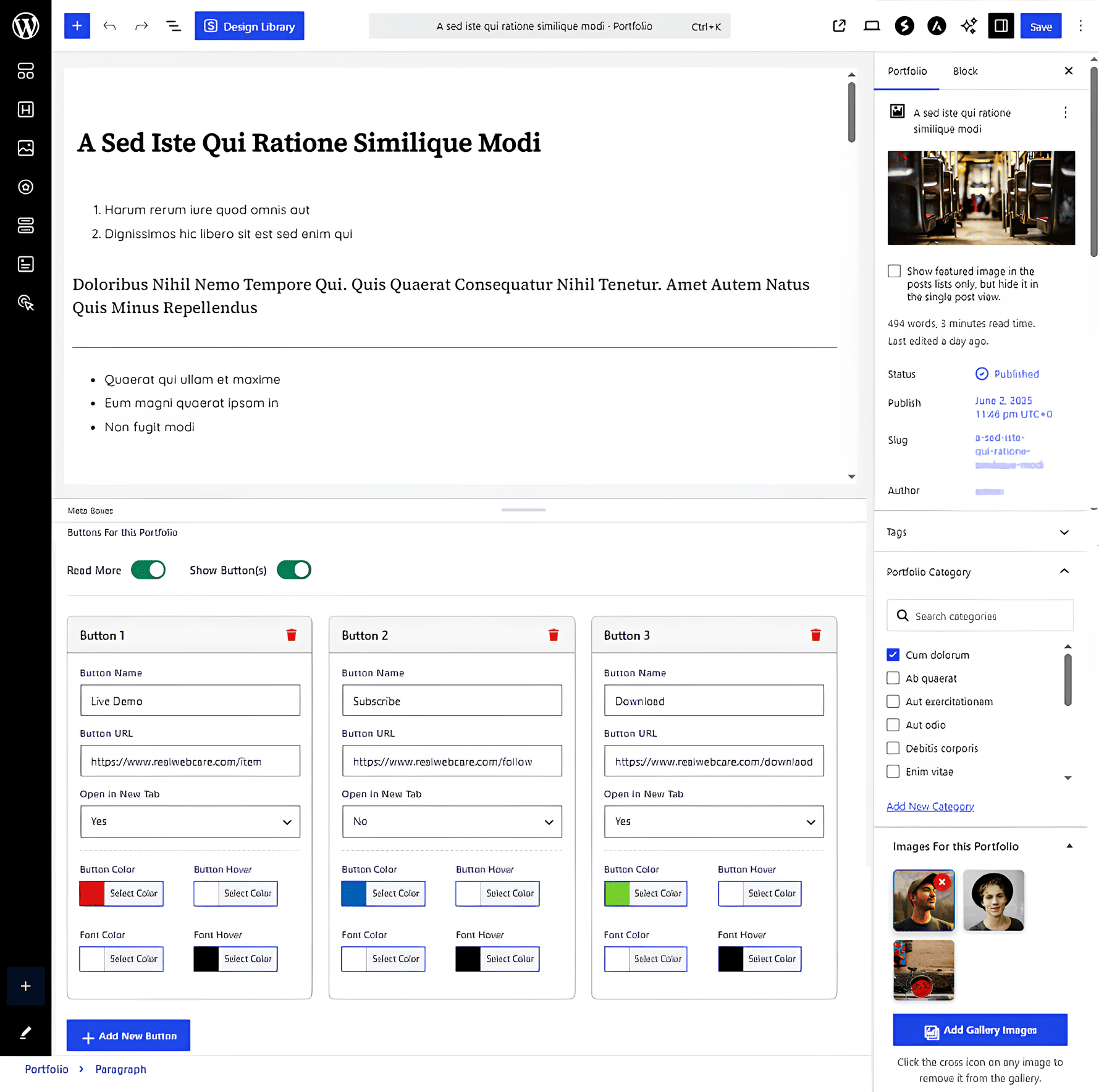
- Go to Portfolio » Add New Portfolio in your WordPress admin panel.
- Provide a Title and a Description (optional) in the post editor.
- Set a Featured Image, which will be used as the portfolio thumbnail.
- Also add multiple images for the carousel by clicking on Add Gallery Images button.
- Add your portfolio categories and select the category of the portfolio.
- Enable Read More button if you want to show it after the content excerpt
- You can also add more buttons by enabling Show Button(s) option. It will allow you to add multiple buttons one by one as per your needs. You can also colorize each button differently.
- Finally, click on Publish. Create all your portfolios like this to show them in the gallery grid.
To set a youtube or vimeo video click on featured image and enter the video link in the Video URL text box. If you enter the correct video link, then in the expanding preview panel, a video iframe will be shown instead of the large image. If it is empty, then the large image will be displayed.
About Portfolio Custom Post Features
The plugin registers a custom post type called Portfolio Gallery. Each item you create acts as a single thumbnail in your gallery grid.
- Title: The title will be shown over the thumbnail and in the expanded preview.
- Description: Added via the standard WordPress editor, this shows as the content in the expanded preview. You can display it as plain text or HTML via the gallery settings.
- Featured Image: Important You must set a featured image. This image represents the thumbnail in the grid layout.
- Categories: Assign categories to group your portfolios. These categories will act as the filter buttons (e.g., All, Web Design, Photography) on the front-end.
Gallery Images (Carousel)
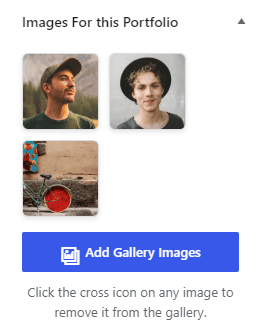
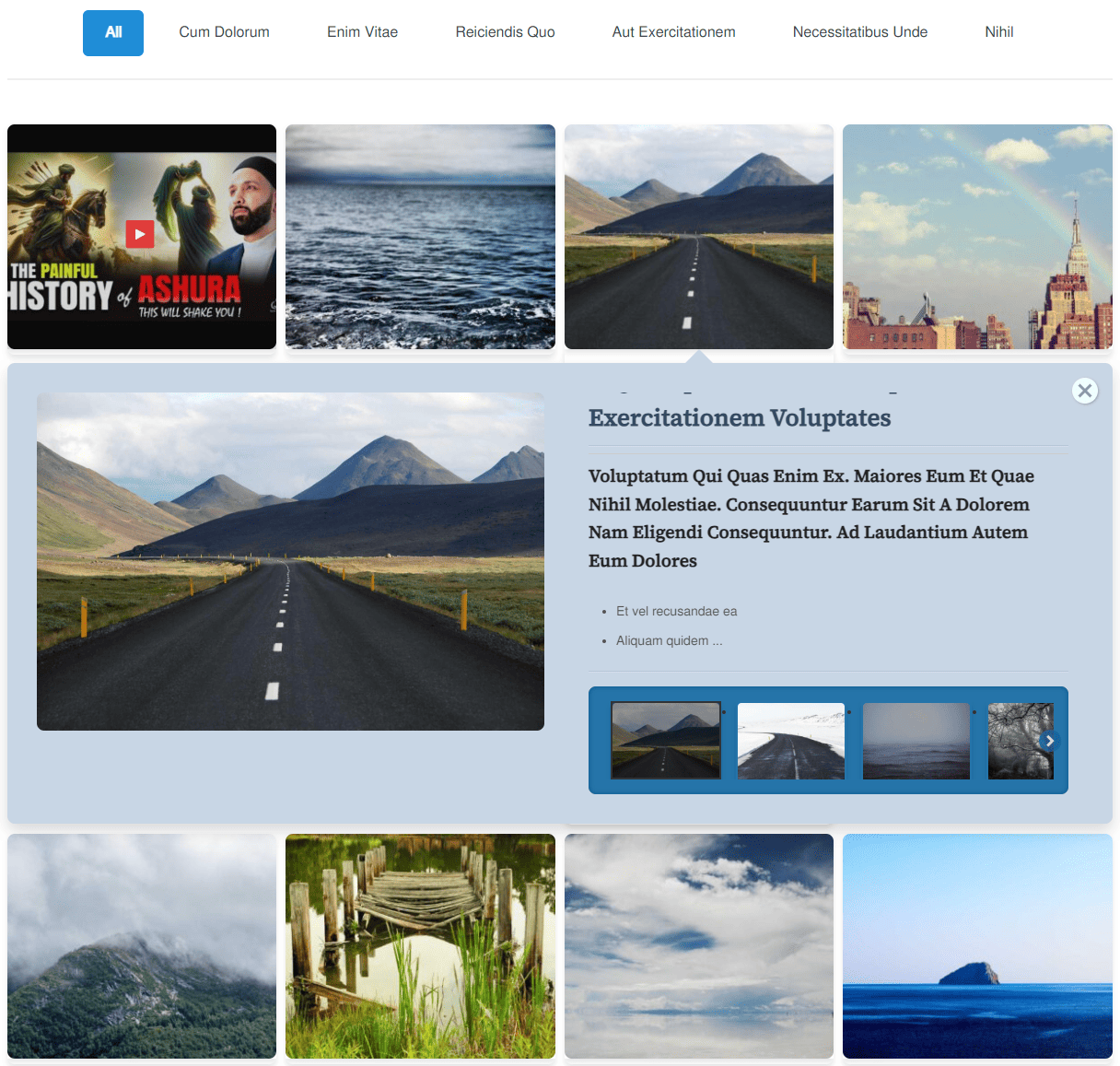
You can add multiple images to create a stunning carousel that appears inside the expanding preview box when a user clicks the thumbnail.
- In the portfolio editor, find the Images For this Portfolio metabox on the sidebar.
- Click the Add Gallery Images button.
- Select multiple images from the WordPress Media Library or upload new ones.
- You can remove an image anytime by clicking the cross icon, triggering a premium custom alert modal.
YouTube and Vimeo Video Support
Responsive Portfolio Image Gallery Pro has the powerful video integration, allowing you to automatically generate and resize video thumbnails from YouTube and Vimeo URLs.
- Go to the WordPress Media Library and edit an image, or upload a new placeholder image.
- In the attachment details, find the custom Video URL field.
- Paste your YouTube or Vimeo URL. The plugin will handle the rest, including downloading and resizing the video thumbnail locally for better performance.
Custom Buttons
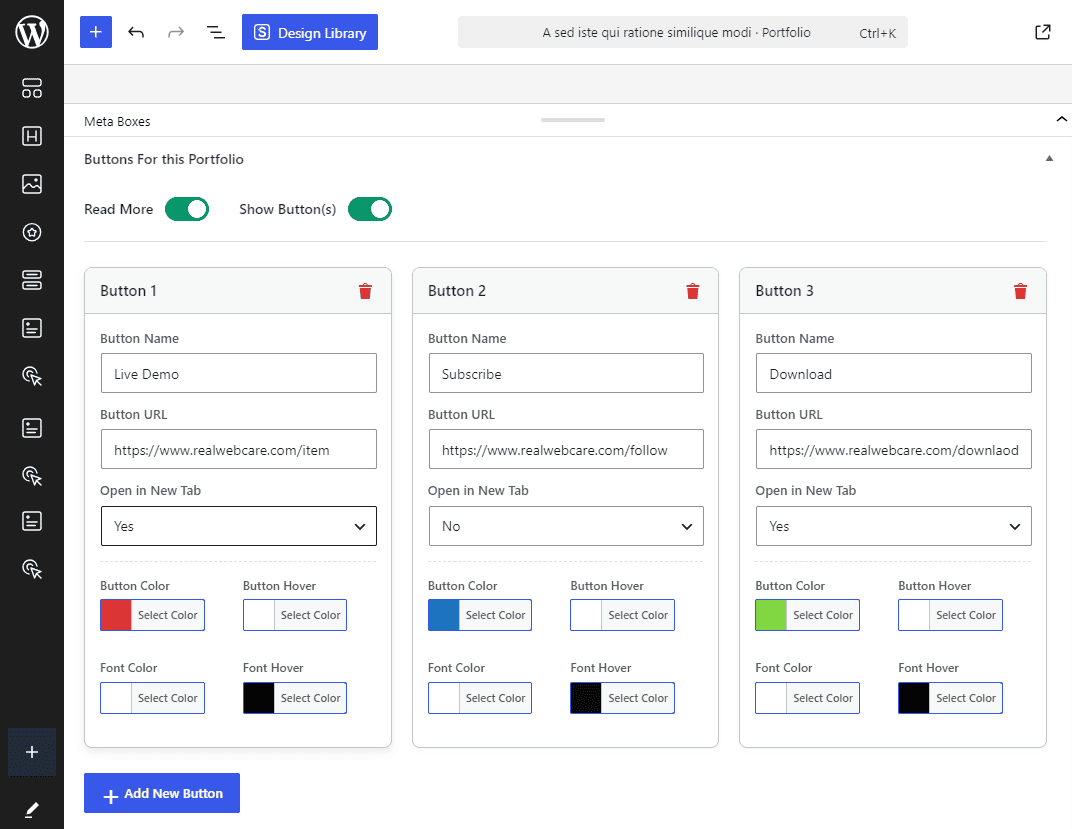
Enhance your expanded preview by adding actionable buttons (like "Live Demo", "Download", etc.).
- Find the Buttons For this Portfolio metabox below the main editor.
- Use the toggle switches to enable Read More and Show Button(s).
- Click Add New Button to create a new button card.
- For each button, you can customize:
- Button Name and URL
- Open in New Tab (Yes/No)
- Button Color and Hover Color
- Font Color and Hover Font Color
Gallery Settings
After creating several portfolio items, navigate to Portfolio » Generate Portfolio. If it's your first time, the list will be empty.
Click on the Add New button to create a portfolio gallery. A modern AJAX based modal will open where you must enter your portfolio gallery name and click to add it.

Once created, a table will display your portfolio gallery name. Mouse over the gallery name and click the Set Gallery link to access the settings panel.
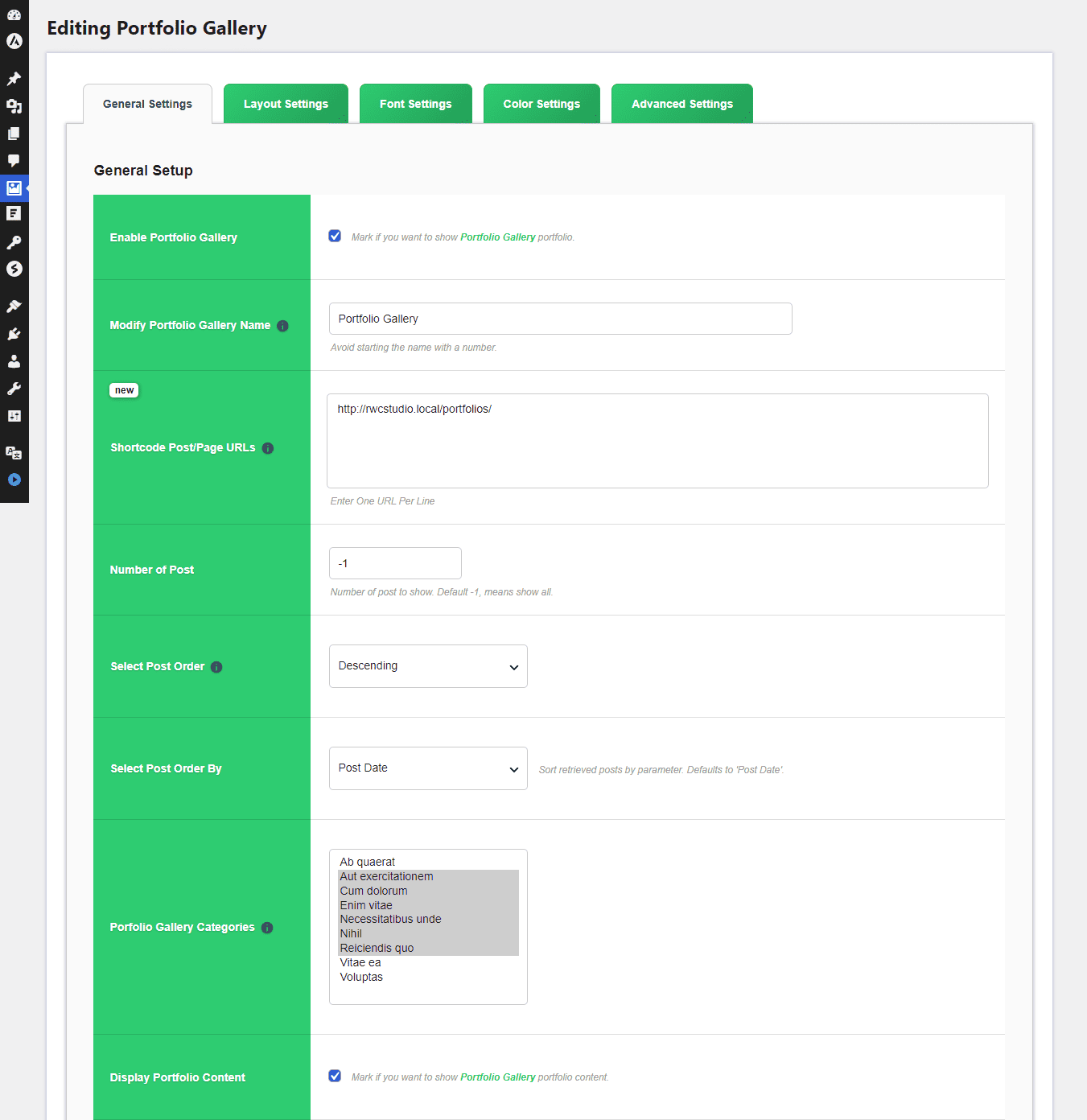
The modern, AJAX-powered settings panel saves any changes instantly without a page refresh. Here you will find five main sections to configure your gallery:
General Settings:
- Enable Portfolio Gallery: Toggle the visibility of the specific gallery.
- Modify Gallery Name: Rename your gallery for easier identification. Ensure it doesn't start with a number.
- Shortcode Post/Page URLs: Provide the exact URLs where the shortcode is used to load custom CSS only on those pages, drastically improving performance.
- Number of Posts & Ordering: Limit the number of portfolios and sort them by date, title, ID, or randomly in ASC/DESC order.
- Include Categories: Select specific categories to filter and display in the gallery.
- Display Content: Toggle the description visibility, choose Plain Text or HTML, set excerpt word length, and customize the "Read More" text.
- Carousel Settings: Enable the multiple image carousel, and optionally display specific carousel image titles and descriptions from the Media Library.
Layout Settings:
- Container Width: Specify the maximum width of the gallery container.
- Navigation Alignment: Align the filter buttons (Left, Center, Right).
- Thumbnail Title Max Length: Set the maximum length of the post title. Use -1 or 0 for no limit.
- Show Line Under Thumbnail Title: Enable this option to display a subtle horizontal line below the title on each thumbnail.
- Use Video Thumbnail: If an image has a video assigned via the media attachment field, this option uses the video's thumbnail instead.
- Responsive Columns: Set independent column counts for Desktop (1025px+), Tablet (769px-1024px), and Mobile (up to 768px).
- Portfolio Thumbnail Alignment: Choose how thumbnails should be positioned: left, right, or centered.
- Row & Column Gap Between Thumbnails: Define the vertical and horizontal gap between each row and column of thumbnails. Set to 0 if you want thumbnails side by side.
- Portfolio Button Padding: Control the top-bottom and left-right space inside each portfolio button.
- Expanding Preview Height: Set the exact height of the preview panel. Use 0 to disable it entirely.
Font Settings:
Control the typography across your portfolio gallery by specifying global font families and custom font sizes.
- Primary Font Family: Apply a custom font family for the portfolio headings. Make sure the font is properly loaded from your theme or Google Fonts.
- Secondary Font Family: Set a secondary font family for the portfolio text or content area.
- Thumbnail Hover Font Size: Control the size of the text shown when hovering over a thumbnail.
- Portfolio Title Font Size: Adjust the size of the portfolio title inside the expanding preview box.
- Portfolio Content Font Size: Customize the font size for the descriptive content inside the expanding preview.
- Portfolio Button Font Size: Set the text size for action buttons inside the expanding preview box.
- Read More Font Size: Control the font size of the Read More link.
Color Settings:
Unleash your creativity with unlimited color schemes to perfectly match your site's branding.
Filter Colors
- Active Filter: Set the background and text color for the currently selected category filter button.
- Inactive Filter: Customize the background and text color for unselected filter buttons, including an independent hover color setting.
Thumbnail Colors
- Hover Background & Opacity: Select the color overlay that appears when hovering over a thumbnail and fine-tune its transparency (0-10 scale).
- Hover Border & Font Color: Define the border and text colors that appear during the thumbnail hover state.
Expanding Preview Colors
- Preview Background: Change the main background color of the expanded view panel.
- Title & Content Colors: Customize the font color for both the main title and paragraph text inside the expanding preview.
Read More & Carousel Colors
- Read More Button: Adjust the background, hover, and font colors of the Read More link.
- Carousel Wrapper: Select a background color that sits behind the image carousel within the expanded preview panel.
Advanced Settings:
Fine-tune the gallery animations and interaction effects.
- Portfolio Filter Effect: Choose the CSS3 animation effect (e.g., Fade In, Slide Up, Zoom Fade, Helix Spin) that plays when switching between portfolio categories.
- Thumbnail Hover Overlay Effect: Enable animated hover overlays on your thumbnails. Choose from over a dozen professional effects such as "Direction-Aware Hover", "3D Fly-In", or "Flip Zoom Reveal".
- Thumbnail Hover Inverse: When using the Direction-Aware Hover effect, enable this option to invert the animation direction relative to your mouse movement.
- Thumbnail Hover Delay: Set a delay (in milliseconds) before the hover overlay animation starts.
- Thumbnail Hover Image Effect: Enable secondary animations for the image itself on hover. Choose from effects like "Zoom & Pan", "Shrink on Hover", or "Morph into Circle".
- Expanding Preview Speed: Set the exact speed (in milliseconds) it takes for the preview panel to slide down and expand. Lower values are faster (e.g., 200ms), while higher values are slower and smoother (e.g., 800ms).
SHORTCODE Placement
Each portfolio gallery will have a unique shortcode with a different gallery ID. Simply paste the shortcode into your desired post or page to display the gallery.
Shortcode Usage Instruction:
To display a portfolio gallery in a WordPress post or page:
- Go to Portfolio » Generate Portfolio to find your shortcodes.
- Copy the shortcode. It looks like this:
[rpgal-gallery id="YOUR_GALLERY_ID"] - Go to Posts or Pages, and either create a new one or edit an existing one.
- Paste the shortcode into the editor (or inside a Shortcode block if using Gutenberg/Elementor).
- Save or publish the post or page.
Portfolio Settings
Navigate to Portfolio » Portfolio Settings to access the global configurations for your plugin. This area controls plugin-wide behaviors, custom templates, custom CSS, and backup tools. There are five main tabs here:
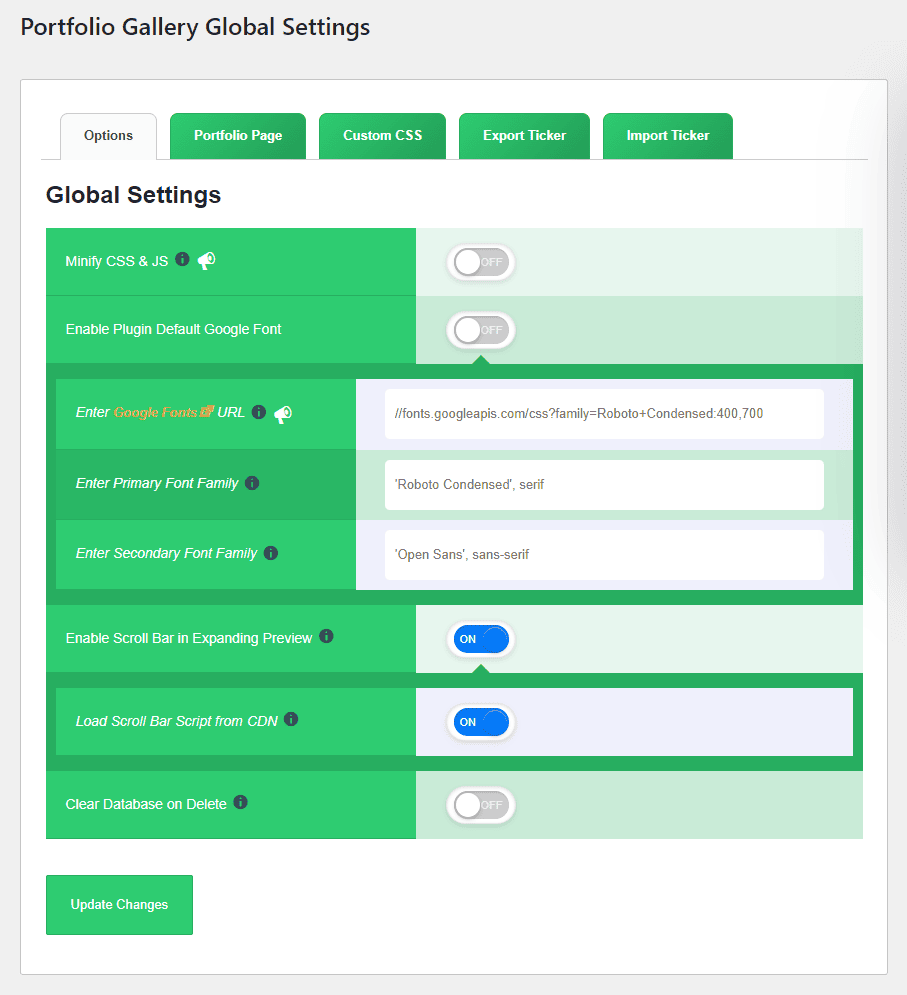
1. Options (Global Settings)
This tab contains critical performance and structural settings that apply across your entire site.
- Minify CSS & JS: Enable this to compress the plugin's stylesheets and scripts. Minification removes unnecessary spaces and comments, significantly reducing file size and improving your website's load speed.
- Google Fonts Integration: You can enable the default Google Font, or load your own custom typography by providing a Google Fonts URL and specifying the Primary and Secondary Font Families to be used globally across all your portfolios.
- Expanding Preview Scroll Bar: If your portfolio descriptions are lengthy, enable a vertical scrollbar within the expanded preview panel. You can optionally load the scrollbar script from a CDN for faster performance.
- Clear Database on Delete: Check this option if you want all plugin-related data and settings to be completely wiped from your WordPress database when you delete the plugin.
2. Portfolio Page (Template Settings)
Use these settings if you want the plugin to handle the layout of your single portfolio post pages and portfolio archive pages, rather than relying on your theme's default templates.
- Container Width: Set a maximum pixel width for the template content area, or leave blank for a full-width layout.
- Single Page Custom Template: Enable a custom-designed layout for individual portfolio items, and specify the maximum character limit for image descriptions.
- Archive Page Custom Template: Enable a custom layout for the portfolio category/archive pages. You can control the description length here as well.
- Grid Configuration: Define the width and height of the portfolio images, choose between 1 to 4 columns for the layout, adjust the spacing between items, and set the text alignment.
- Display Sidebar: Toggle whether your theme's sidebar should be visible on these custom template pages.
3. Custom CSS
If you need to make specific styling tweaks, do not modify the core plugin files. Instead, write your custom CSS in this dedicated editor. Code placed here loads after the plugin's default stylesheets, ensuring your rules take precedence and won't be lost during plugin updates.
4. Export
Protect your hard work by creating backups. Clicking the Download Export File button generates a .json file containing all your gallery configurations and global settings. Note: This only exports your settings, not your actual portfolio posts or images. You can use this file to restore your settings or migrate them to another site.
5. Import
If you have previously exported a .json backup file, you can restore it here. Simply browse for your file and upload it. The system accepts files up to 500 KB in size. Uploading a valid backup will immediately restore your gallery configurations.
Examples
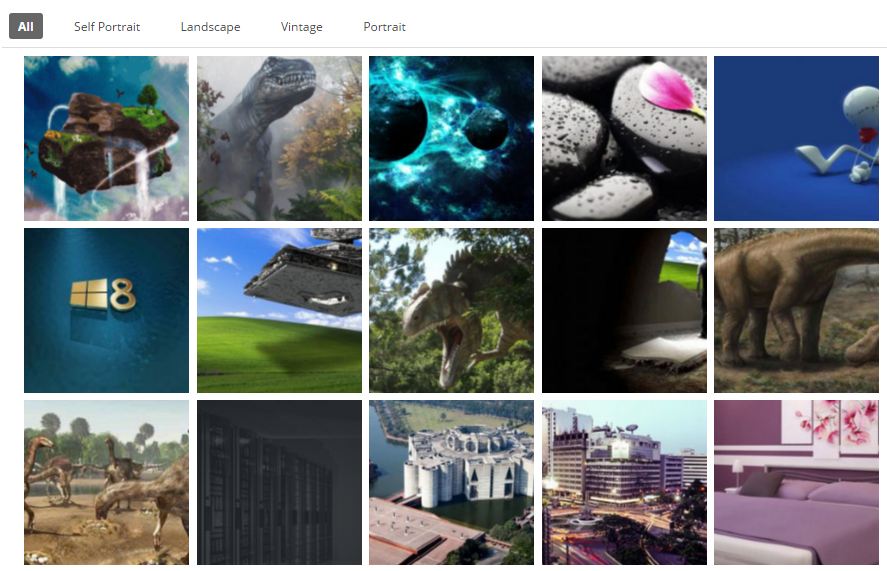
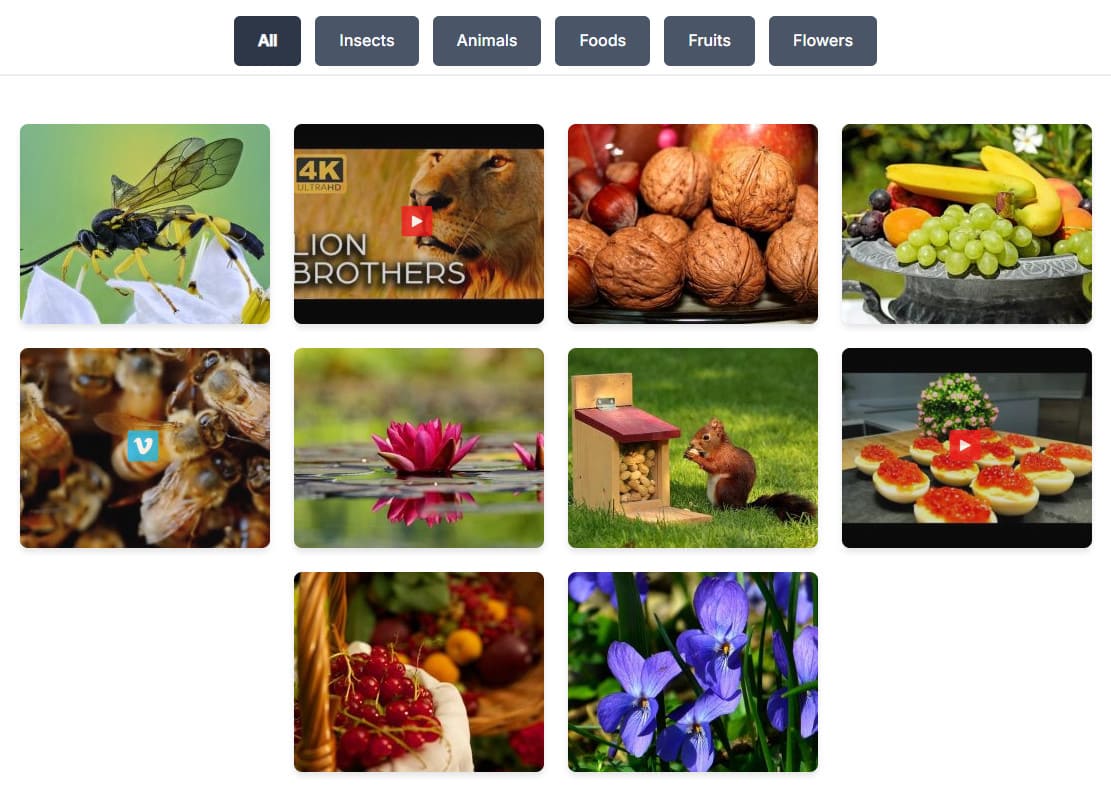
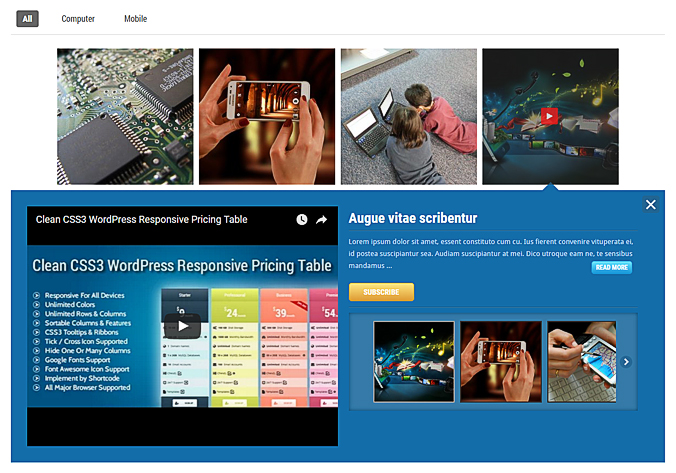
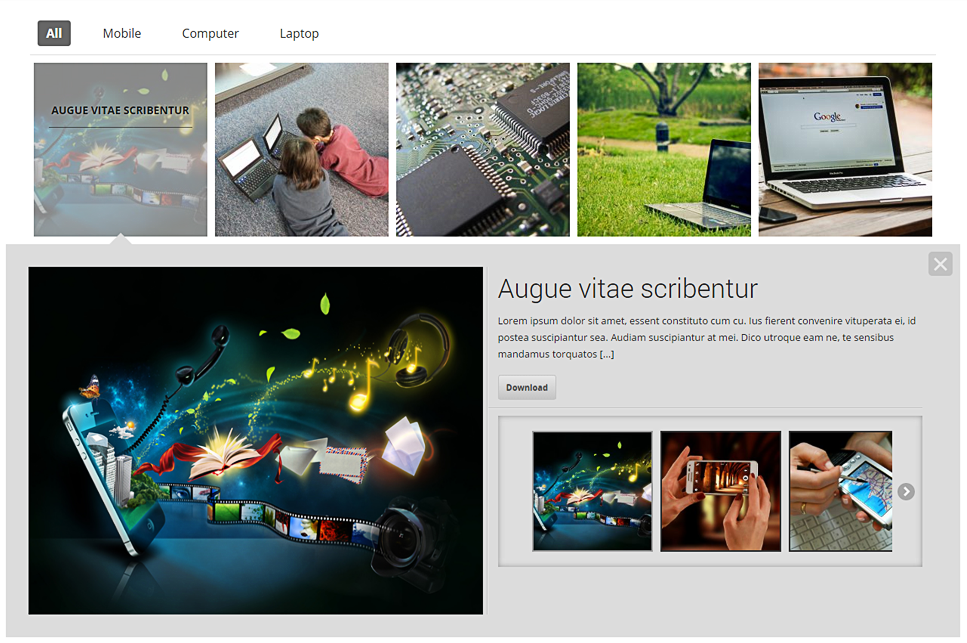
Here are a few examples of what you can build with the Responsive Portfolio Image Gallery Pro.
Demo Video
Watch this quick video to see the plugin in action.
FAQ
A FAQ is a list of frequently asked questions (FAQs) and answers on a particular topic.
Source & Credits
Developed By:
- Realwebcare - Web hosting services that will settle your online life.
Scripts:
- Classie - Class helper functions by bonzo.
- Direction Aware Hover Effect by Codrops.
- Thumbnail Grid with Expanding Preview by Codrops.
- Elastislide by Codrops.
Fonts:
- Font Icons - Dashicons
- Font Family - Google Fonts
Templates:
- Docs Template: iDocs - One Page Documentation HTML Template
Support
If you have further questions or need additional assistance beyond this documentation, please don't hesitate to reach out to us. You can submit your query on our Support Page.
We are located in GMT +6:00 time zone and we answer all questions within 12-24 hours on weekdays. In some rare cases, the waiting time can be up to 48 hours (except holiday seasons which might take longer).
More Plugins
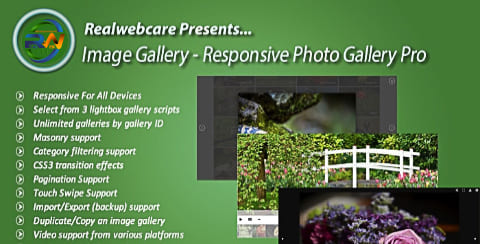
Checkout Our Below Free & Premium Plugins



Changelog
See what's new added, changed, fixed, improved or updated in the latest versions.
For Future Updates Follow Us @facebook / @twitter / @linkedin
Version 1.2 (8 June, 2026)
- Build 9th major release.
- Improved Compatible with WordPress 7.0.
- Improved Added stylish modal for creating new portfolio.
- Added Number of columns to display on Desktop, Tablet, and Mobile viewports independently.
- Fixed Ensure only an admin will see the debug messages if there is any issue on front-end.
- Fixed Description on expanded view to show exactly what is written in the post editor.
- Fixed Thumbnail issue for videos if video thumbnail generation is disabled.
- Introduced Self-hosted license management system and auto-update checking.
Version 1.1 (4 July, 2025)
- Build 8th major release.
- Added AJAX-powered form submission added for smoother user experience—no page refresh needed.
- Added Automatically generate and resize video thumbnails from YouTube and Vimeo URLs.
- Added Resized thumbnails are saved locally in `/wp-content/uploads/rpgal/{YEAR}/{MONTH}` directory.
- Added Thumbnails are saved to the WordPress Media Library, attached to the portfolio post.
- Added Option added to display preview content as plain text or styled HTML.
- Added Only load the selected table’s custom CSS for better performance and cleaner output.
- Added Introduced a "Recommended Plugins" section inside the admin panel to showcase our featured plugins.
- Added 15 new filter animations triggered on category click.
- Added More advanced hover effects for thumbnail overlays and images.
- Enhanced Entire admin interface redesigned with a cleaner, modern look.
- Enhanced Fully responsive admin layout optimized for all screen sizes and devices.
- Enhanced Modal-based UX improvements with real-time progress feedback.
- Enhanced Improved codebase security and alignment with WordPress coding standards.
- Improved Portfolio gallery layout enhanced with modern grid and flexbox styling.
- Improved Carousel logic now skips empty image sets—no blank sliders.
- Fixed All previously reported JavaScript and CSS conflicts resolved.
- Compatibility Verified and compatible with the latest WordPress version.
- Refactored Complete migration to Object-Oriented Programming (OOP) for better maintainability and flexibility.
Version 1.0.6 (5 May, 2022)
- Build 7th release.
- Fixed Fixed some CSS & JS issues.
- Improved Improved the outlook of the admin panel.
Version 1.0.5 (22 February, 2021)
- Build 6th release.
- Fixed Fix a jQuery issue to make compatible with WP 5.6.1
- Fixed Fix single quotes issue for image description.
Version 1.0.4 (12 August, 2020)
- Build 5th release.
- Fixed Urgent fix a jQuery issue to make compatible with WP 5.5
Version 1.0.3 (11 May, 2020)
- Build 4th release.
- Added Added option to implement html tag on expanded preview description.
- Added Added option to select more than one categories for portfolio custom post.
- Added Added option to delete multiple portfolios at a time.
- Improved Shortcode ID will not be reset if one or more tables is deleted.
- Added Added option to hide buttons for portfolios in expanded preview instead of deleting.
- Introduced Included automatic updates from the WP admin panel.
- Fixed Fixed some css bugs
Version 1.0.2 (22 June, 2019)
- Build 3rd release.
- Improved Replaced all scripts (including inline) at footer.
- Improved Replaced inline CSS from body section to header.
Version 1.0.1 (1 October, 2016)
- Build 2nd release.
- Improved Align the Navigation for the Gallery.
- Fixed Fixed some bugs.
Version 1.0 (3 September, 2016)
- Build Initial Release.